Screenshot Text Editor Online
Edit screenshot text online without retaking the screenshot. Replace names, dates, prices, labels, and short UI copy while keeping the original style and background as natural as possible.
Upload Your Image
Drag & drop or click to upload
Supports: JPG, PNG, JPEG, WebP (Max 20MB)

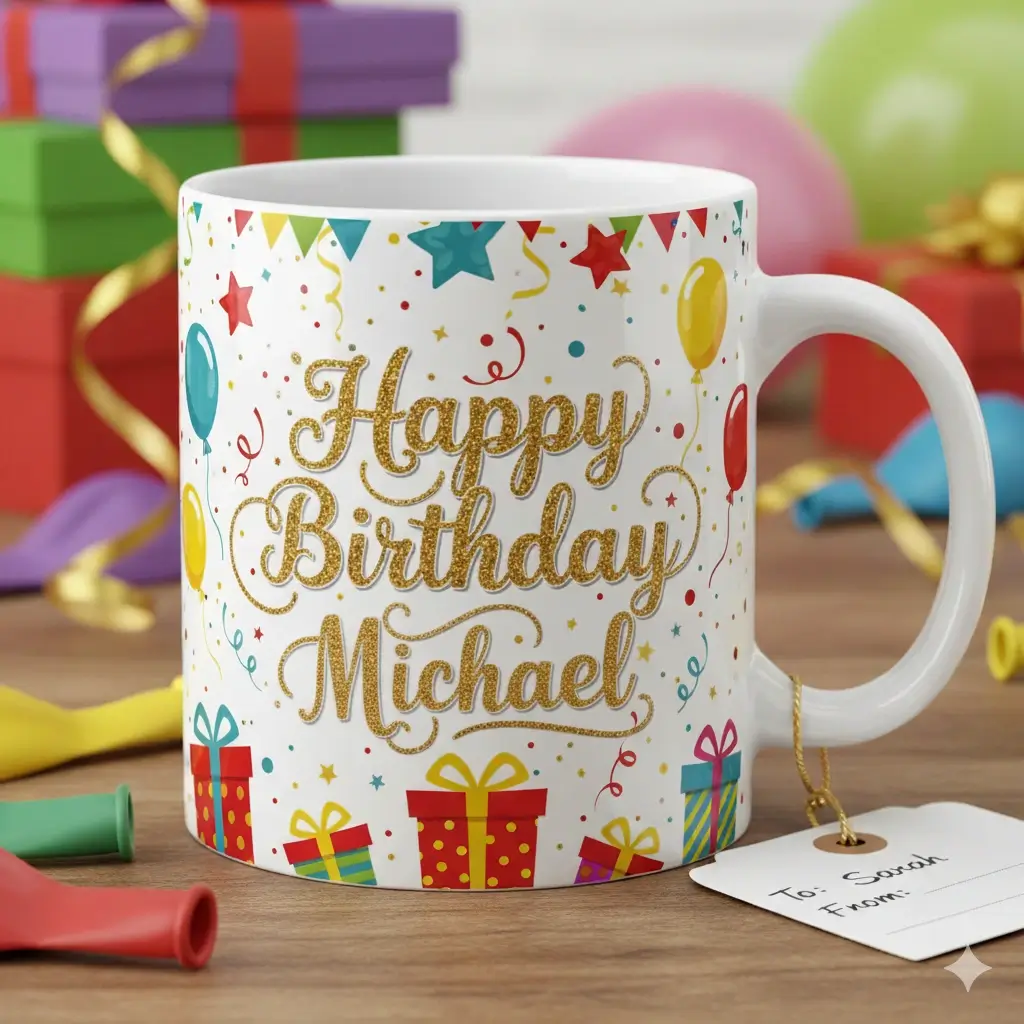
See how the edited text blends back into the image instead of looking like a pasted text box.
Upload a screenshot, replace the old text, and download the updated result in the browser.
Drag to adjust the text selection area
Edit Text
Your Image Preview
Upload an image to start editing
Processing Your Image...
This usually takes 30-60 seconds
How to Edit Screenshot Text Online in 3 Steps
Upload Your Screenshot
Upload a clean JPG, PNG, JPEG, or WebP screenshot. The screenshot text editor works best when the text is readable and the screenshot has enough resolution for the AI to understand the original layout, color, and surrounding background.
Select the Text and Enter the Replacement
Mark the part of the screenshot you want to change, then type the new copy. This is the key step when you want to edit screenshot text online instead of just covering the old words with a new text box.
Generate and Download the Updated Screenshot
The AI removes the old text, repairs the background, and blends the new words back into the screenshot. You get a screenshot update that looks closer to the original interface and is ready to share in docs, slides, chats, or product pages.
Edit the screenshot itself, not just add text on top
People who search for a way to edit screenshot text online usually do not want a design tool for annotations. They already have a final screenshot and need to fix one line quickly. The real job is to change baked-in screenshot text while keeping the original interface believable. That is why this page focuses on text replacement, same-style matching, and background repair instead of generic screenshot markup features.

Before and After Screenshot Text Editing Examples
These examples reflect the kind of updates people want when they search for a screenshot text editor online: believable text replacement, cleaner background repair, and a faster workflow for final exported images.

Pricing Screenshot Update
Change a number or price in a saved screenshot without rebuilding the whole visual.


Promo Text Refresh
Update a short headline in a banner-style screenshot while keeping the layout consistent.
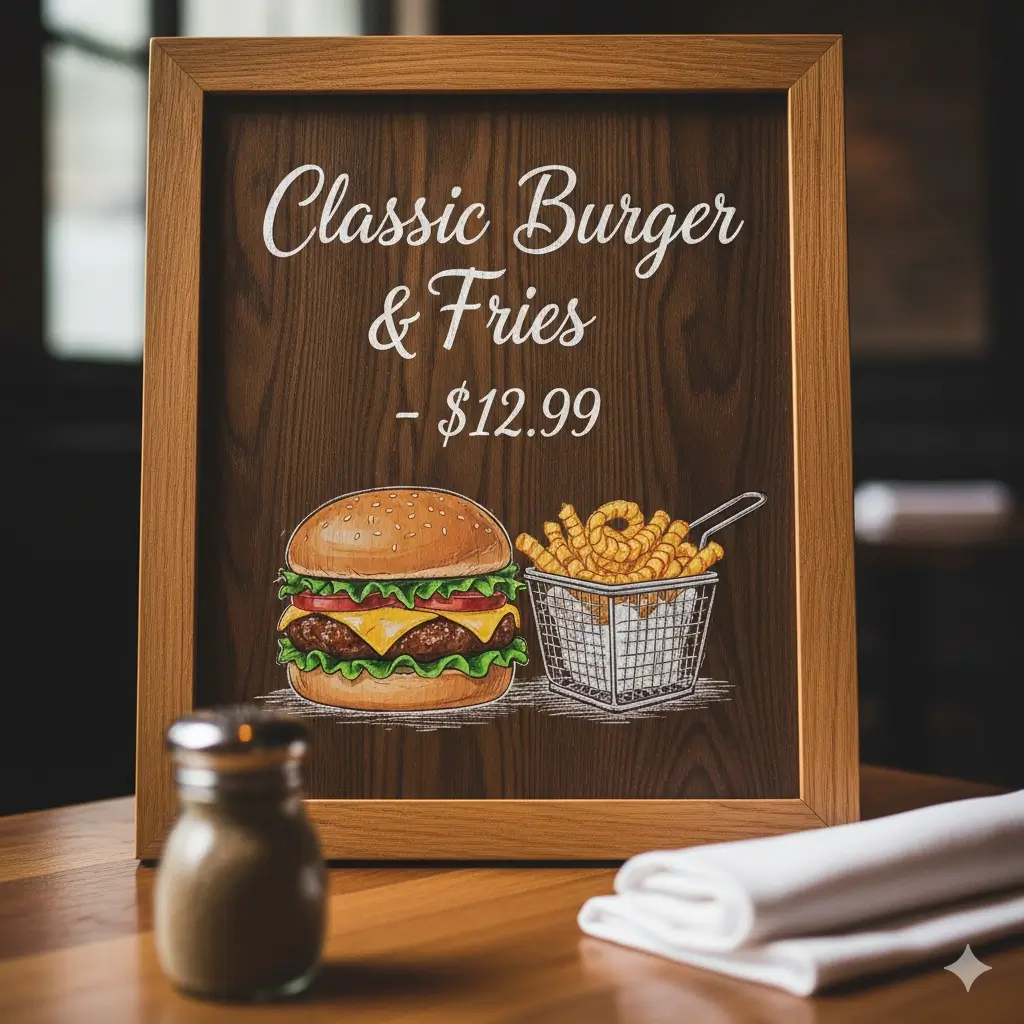

Menu or Info Panel Fix
Correct a line of text in a screenshot-style panel and keep the edited result readable.
Label or Name Replacement
Replace a short label in an exported image when all you have left is the final screenshot or mockup.
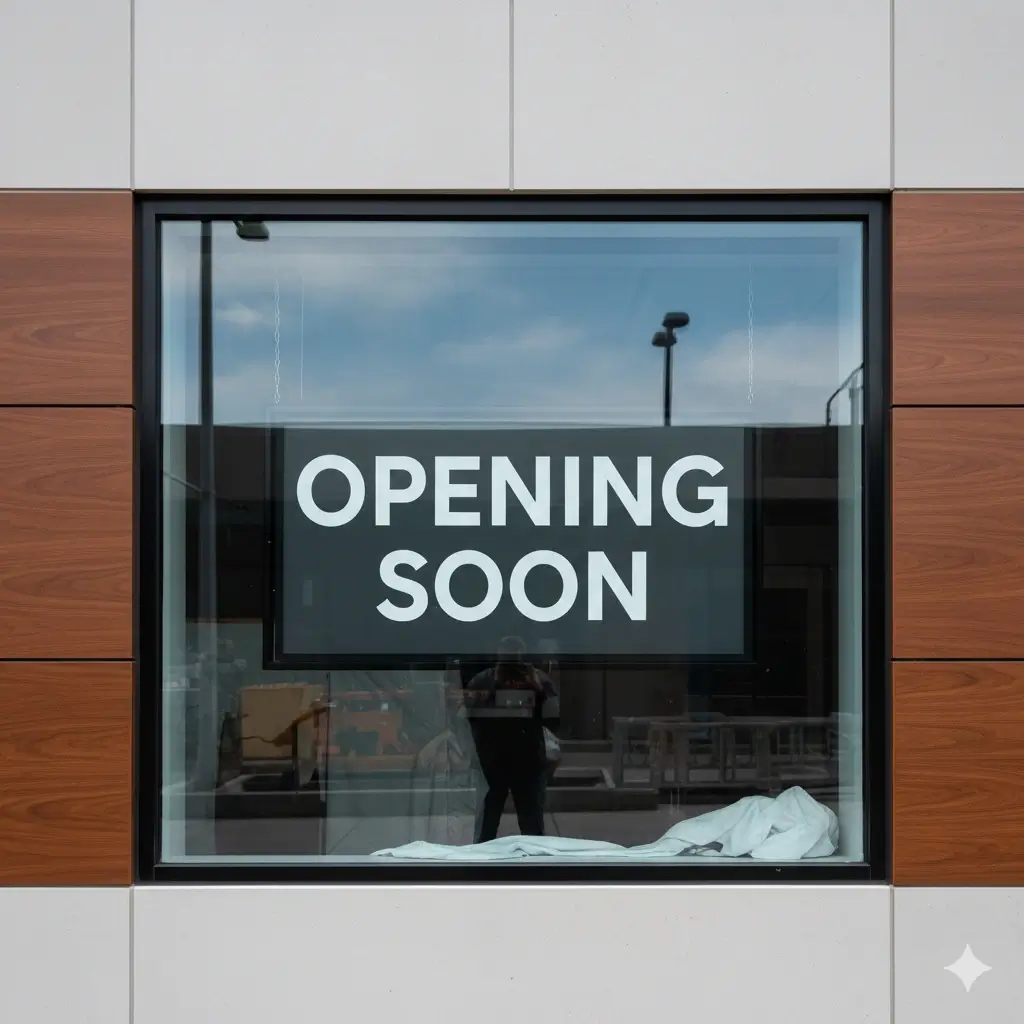
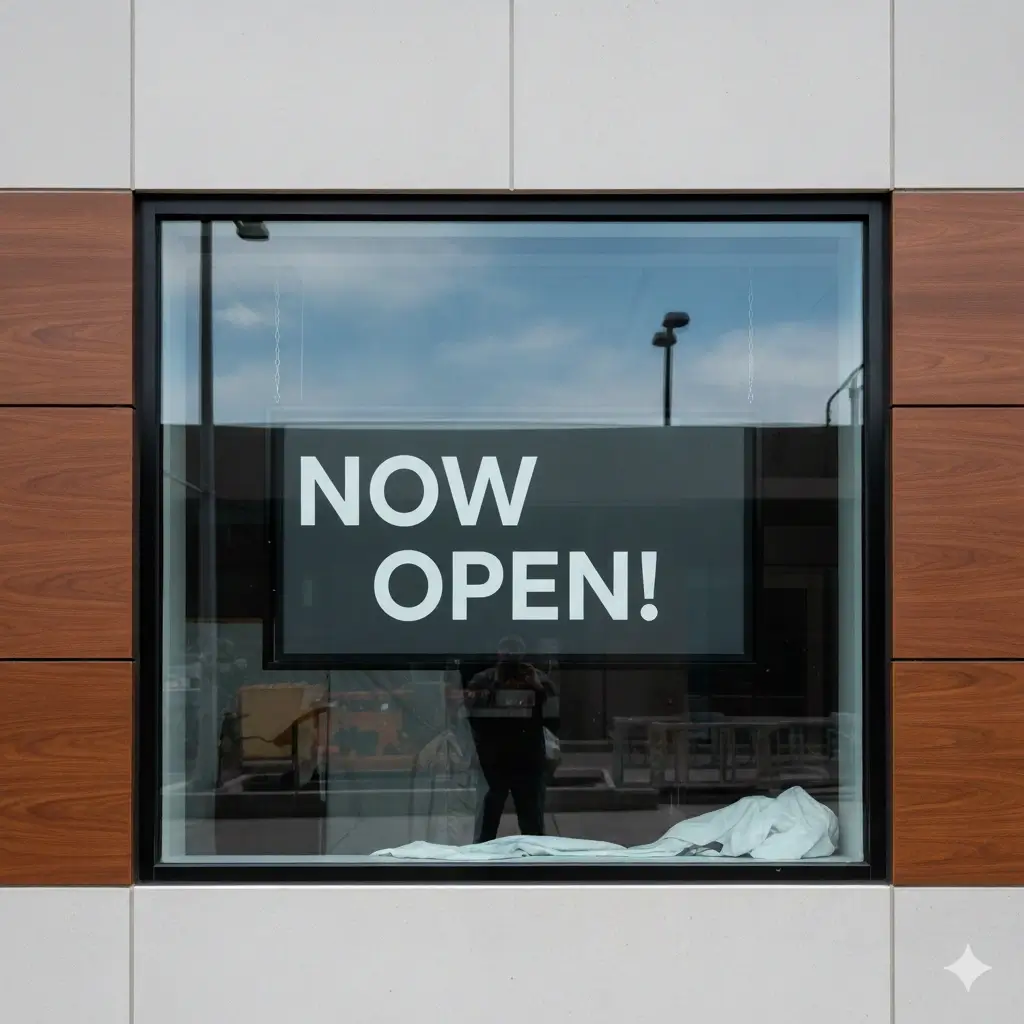
Status Text Change
Update a status line, badge, or callout while keeping the image more believable.

Short Caption Rewrite
Swap a short phrase in a shareable visual without creating an obvious overlay effect.
What a Good Screenshot Text Editor Should Do
Edit Screenshot Text Online Instead of Overlaying It
This workflow is built for replacing baked-in screenshot text, not just adding a new text box. That matters when you want the final screenshot to look more native to the original image.
Match the Original Style More Closely
The AI studies the existing text area and tries to keep the same font feel, size, spacing, and color. That makes it easier to change text in a screenshot without making the edit feel pasted on.
Handle High-Intent Screenshot Fixes
Use the page to edit screenshot text online for typo fixes, date changes, label updates, price edits, and name replacements in interfaces, chats, reports, and help center visuals.
Repair the Background Behind Old Text
A screenshot text editor is only convincing if the removed text area is cleaned up well. The tool focuses on rebuilding the old background before blending in the replacement copy.
Work with Common Exported Image Formats
Upload JPG, PNG, JPEG, or WebP screenshots. This is useful when the original source file is gone and you only have the flattened screenshot that already contains the old text.
Keep the Workflow Fast and Browser-Based
If your goal is to change one line and move on, you should not need Photoshop, Figma, or a full design workflow. Upload, select, replace, and download is the core promise here.
What Usually Works Best for Screenshot Text Editing
What the AI tries to preserve
- Font feel, text size, and line placement
- Color, contrast, and simple interface styling
- Spacing and alignment relative to nearby UI elements
- Background continuity behind removed text
- Clean edges around short replacement text
- Overall screenshot readability after editing
Screenshots that usually perform best
- Clear UI screenshots with readable labels and buttons
- Chats, dashboards, reports, and docs with short text swaps
- Images where the replacement is similar in length to the original
- Exports with moderate contrast and minimal blur
- JPG, PNG, JPEG, and WebP screenshots with enough resolution
- Simple perspective or mostly front-facing layouts
Best Use Cases to Edit Text in a Screenshot Online
Product and App Screenshots
Edit screenshot text online when a product UI changes after you already published documentation, landing pages, onboarding steps, or feature comparisons. It is especially useful for replacing labels, button text, empty states, or plan names in saved screenshots.
Help Center and Tutorial Images
A screenshot text editor is useful when one outdated screenshot forces a large support article revision. Change text in screenshot images for guides, tutorials, setup instructions, and walkthroughs without recreating the whole environment.
Chat, Comment, and Social Screenshots
Replace names, short replies, timestamps, or sensitive details before sharing a chat screenshot in a presentation, case study, social post, or internal document.
Dashboards, Reports, and Slide Decks
Update a figure, date, status, or KPI in an exported screenshot before a meeting or a client presentation. This is one of the highest-intent ways people search for a screenshot text editor online.
Localized Screenshot Versions
When you need a quick translated variant of an existing screenshot, the page helps you replace short English interface text with another language while keeping the screenshot layout more consistent.
Marketing Mockups and Review Cycles
Teams often need to change one screenshot word during review, compliance checks, or message testing. Edit text in screenshot files to refresh a claim, CTA, or price without sending the asset back through a full design loop.
FAQ: Screenshot Text Editor Online
Try the AI Screenshot Text Editor
Upload a screenshot, replace the old text, and generate a cleaner updated version in minutes.
Why This Workflow Fits Screenshot Updates
Privacy First
Useful for work screenshots, help docs, and shareable visuals that may contain sensitive details.
Flattened Image Friendly
Built for final screenshot files where the old text is already baked into the image.
Fast Small Fixes
Good for quick screenshot edits like dates, labels, typo fixes, and price changes.
No Design Tool Required
You can edit screenshot text online in the browser without opening a full design app.